Getting Started
Installing ScreenSorts on macOS is quick. Since we are a new developer, you might need to approve the app the first time you run it.
2. Drag to Applications
Open the downloaded .dmg file and drag the ScreenSorts icon into the Applications folder.
3. Security Check
Apple is strict with new developers. Until we are on the App Store, you might see a scary-looking warning. This is normal for direct downloads.
1Verify Integrity
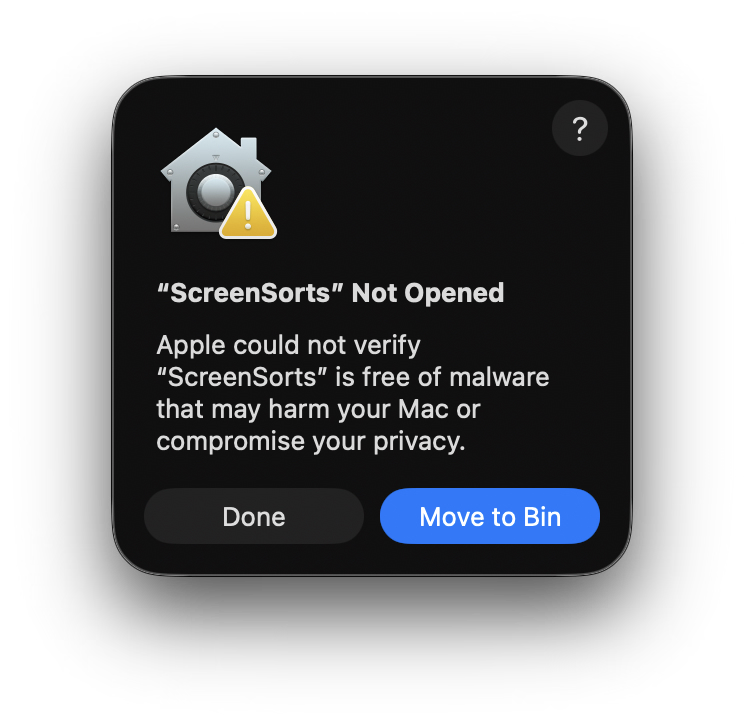
When you open the app, you might see a warning: "can't be opened because Apple cannot check it for malicious software".
Click Done.
2Open Settings
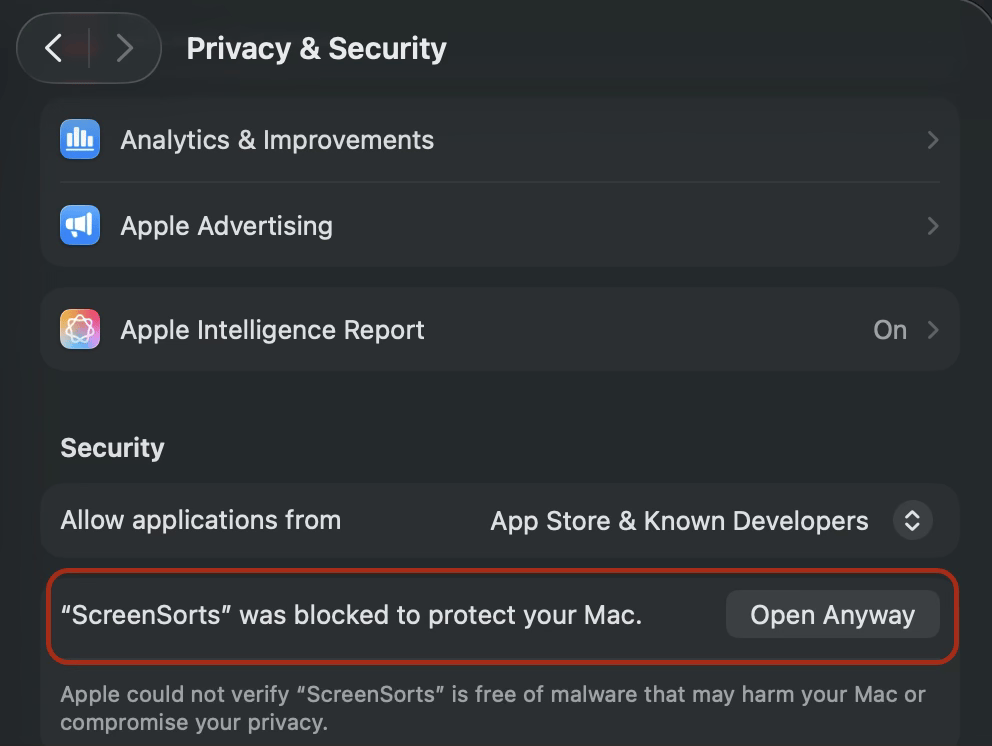
Open System Settings and go to Privacy & Security.
Scroll down until you find the Security section.
3Allow App
You will see a message about ScreenSorts.
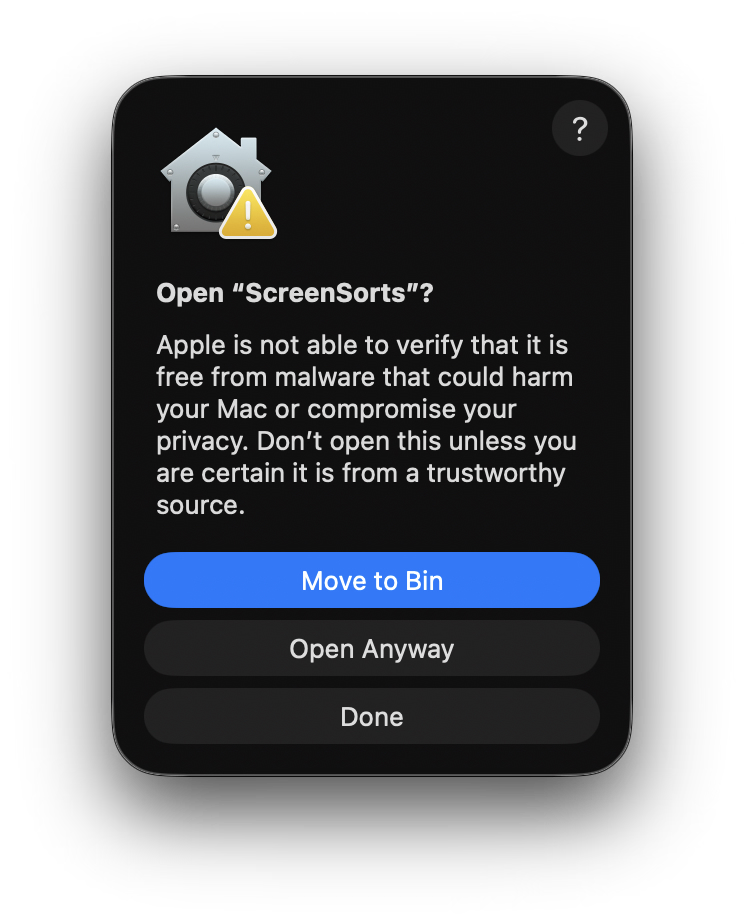
Click the Open Anyway button. A final confirmation dialog will appear—click Open one last time.
4. Ready to Search
Look for the ScreenSorts icon in your menu bar. And the task bar will be visible on the top of the screen.